Blog Home / Login issues with your cw3 account
Login issues with your CW3 account
When CW3 Hosting changed to Ulatu, your user account details did not change at all. The only difference is the URL (Web address) where you log in.
If you have been relying on your web browser to remember your login details, this can cause problems. The web browser only remembers details for a specific site. It will remember your details for cw3host.com but will not associate them with ulatu.com.
If you are unable to remember your password, there are a number of options available to you. The first and easiest option is to log in using a link on cw3host.com. We have purposely left a page on CW3 that will allow you to log in to Ulatu.
It is important to note that the login uses an email address and a password (not a username)
Try logging in using the CW3 portal link.
Once logged in, we suggest you change your password to ensure you can access your account easily in the future.
If the above method does not work, you can reset your password. All you need to do is provide us with the email address you used to log in to your account. A password change request will then be sent to that email address. Follow the instructions within that email to set up a new password.
If you have forgotten the email address you used, or you no longer have access to that email address, you can use the following approach to extract the login details from your web browser.
If you no longer have access to the email address you use to log in, you should change it as a matter of urgency once you can log in to your account.
Google Chrome
Getting your login details from Google Chrome
If you use Google Chrome and relied on it for logging in, then you should be able to recover your details from within Chrome itself.
Open Google Chrome and access the following link…
chrome://password-manager/passwords
This will open a page with a search bar at the top. Start typing cw3host, and you should see cw3host.com show up as a saved password. Click on the cw3host entry.
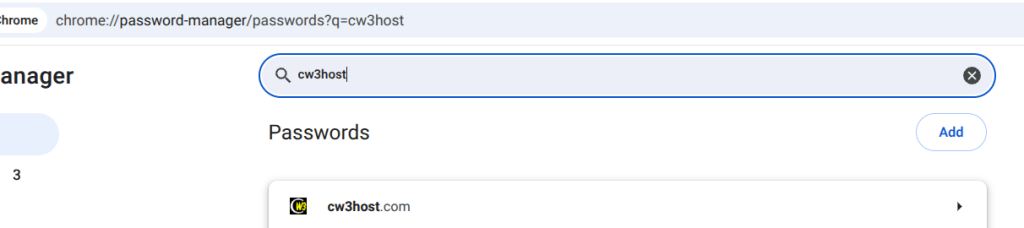
Once you click cw3host, it may ask you to type in a PIN. This is a PIN number you will have set up when you installed Google Chrome or first used some of its features. This is a safety feature to prevent an unauthorised user from being able to access your passwords.
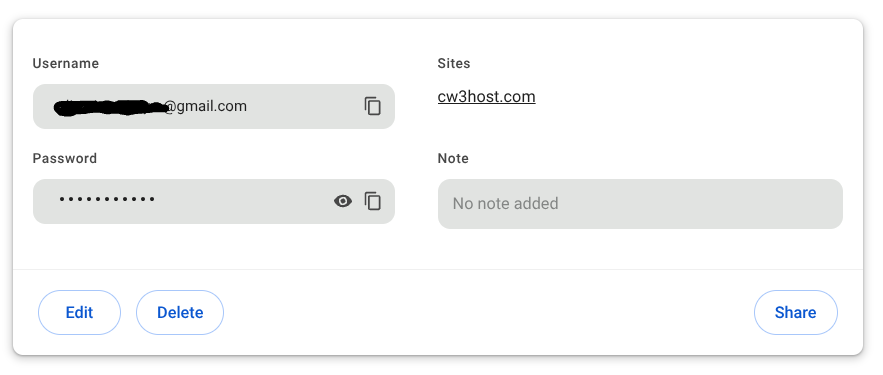
Once you have entered your PIN and it has been accepted, it will show you any accounts you had on cw3host.com. Select the account you use to log in.
From there, you can click the “eye” icon to view your password. You should then take note of your details.
Firefox
If you have previously saved your CW3 Web Hosting password in Firefox, you can retrieve it using Firefox’s built-in password manager. Open Firefox and access…
On the Passwords page, use the search box to look for cw3host.com, then choose the saved login. Click the eye icon next to the password to reveal it. Firefox may ask you to confirm your computer’s password or other device authentication before showing the saved password.
Again, take note of your details to allow you future access.
If none of the above solutions allows you to gain access to Ulatu, please contact us, and we will be more than happy to assist you in regaining access to your account.